My university has done a wonderful thing, in accepting only PDF files for deposition of a thesis or dissertation with the graduate school. Gone are the days of printing 5 copies of a 300-page document on acid-free paper that costs 20 cents a page (and then finding out that one of the margins is 0.1" too wide, so please correct and resubmit before the deadline in three hours). The transition is a wonderful step forward, and also means that it is much easier to distribute the dissertation.
As a proponent of free and open source software (having made the big switch about a year ago), I wanted to do as much as I could within the realms of that universe. This posting summarizes the software I used, with the hope of inspiring others to follow a similar path (whether in whole or in part).
Data visualization: I processed all of my CT scan data in 3D Slicer. For segmenting structures, generating surfaces, and measuring volumes, look no further! [I still need to do a more complete post on this one.] Additional analysis was done in ImageJ.
Data analysis: Initial data entry in OpenOffice.org's Calc, with analysis primarily in R and an occasional venture to PAST.
Figures: Raster image editing was done in the GIMP, and line drawings or composite figures were assembled in Inkscape.
Word processing: All done in OpenOffice.org's Writer. The PDF output function was very nice for sending drafts to committee members and advisors, and the software's Microsoft Office compatibility is such that I could also send and receive marked-up documents (in .doc format) pretty easily. For the final document, I exported each chapter in PDF format.
Referencing: All of my references were sorted, organized, and rendered as bibliographies with Zotero. Along the way, I created custom styles for Journal of Vertebrate Paleontology and Zoological Journal of the Linnean Society. More on this process in another post.
Document assembly: To assemble all of my dissertation's chapters into a single PDF document, I used Ghostscript. The output was quite pleasing, and easily accomplished through the command line in a matter of seconds.
Presentations: For my oral dissertation defense, I created my presentation using OpenOffice.org's Impress.

Showing posts with label Inkscape. Show all posts
Showing posts with label Inkscape. Show all posts
Friday, May 23, 2008

Tuesday, March 25, 2008
Inkscape 0.46 released
As if in response to my previous post, Inkscape 0.46 is now available for download. This version includes some handy new features, including:
-PDF import and export. (However, recall from my previous post that PDF doesn't always play well with transparency or clipping)
-Ability to import Adobe Illustrator files from 9.0 and later.
-Dialog boxes that can be docked along the work area. The convenience of this will be most apparent for people who have used previous versions of Inkscape. No longer will you be cluttered with annoying windows that you have to move around to avoid obscuring your drawings!
-A new "paint bucket" tool, that creates new, color-filled objects that conform to the shape of an object you select.
So far, official release versions are available for OS X and Ubuntu Gutsy. Windows, Fedora, and other versions are supposed to be forthcoming (and interested users could certainly locate a pre-release version).
-PDF import and export. (However, recall from my previous post that PDF doesn't always play well with transparency or clipping)
-Ability to import Adobe Illustrator files from 9.0 and later.
-Dialog boxes that can be docked along the work area. The convenience of this will be most apparent for people who have used previous versions of Inkscape. No longer will you be cluttered with annoying windows that you have to move around to avoid obscuring your drawings!
-A new "paint bucket" tool, that creates new, color-filled objects that conform to the shape of an object you select.
So far, official release versions are available for OS X and Ubuntu Gutsy. Windows, Fedora, and other versions are supposed to be forthcoming (and interested users could certainly locate a pre-release version).
Saturday, March 22, 2008
Inking It Up with Inkscape
A scientist does not live by photos alone. Often, it's nice to to include a little diagram, or line drawing, or composited photo collage, in your paper. In the world of commercial software, there are some really nice options out there, such as Adobe Illustrator and CorelDraw. Among open source problems, however, Inkscape takes the cake.
Inkscape is a vector illustrator - this means that rather than dealing with images as a set of pixels, it uses mathematical formulas to describe the curves, lines, text, and shapes that form the image. Thus, like Illustrator or Corel Draw, it's not intended for photos by themselves (see my previous post on GIMP for that flavor of software).
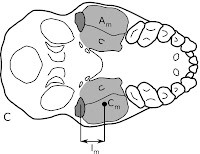
I have prepared a number of illustrations using Inkscape and have been immensely pleased so far. The user interface is pretty intuitive, and I can do most everything I want to do in preparing illustrations for publication. The image at right is one of the first diagrams I created with this program - any crudeness in the rendering is my fault, not Inkscape's! As you can see, it's easy to integrate lettering, shading, and line drawings or photos. Unlike some other open source programs, documentation for Inkscape is actually pretty good, too. There are even some handy tutorials at the program's Wiki page. Inkscape is under very active development (currently in versions 0.45.1, with 0.46 arriving soon), and is available in versions for Linux, Windows, and Mac.
Is Inkscape For You?
So, who would benefit most from Inkscape? I strongly recommend it for the average paleontologist, who needs to make figures for a few publications a year, or presentations, or whatever. The features are more than sufficient to do what you need to do (and you can't beat the [free] price tag!). Professional artists, or people who are married to Illustrator, may find it hard to make the switch to Inkscape. For instance, it's pretty much impossible at present to do color separations (as near as I can tell), which is a bit of a problem for those who need to regularly turn color into a printed copy. Those who primarily do their graphics for the web, though, will probably be in pretty good shape.
A Few Small Issues
The one area where I have been a little disappointed by Inkscape is in import and export. If you have files from a previous program, you may run into some problems. Inkscape only imports Illustrator back to version 8.0 (although see the notation below), and you're out of luck with importing directly from CorelDraw, DXF, or EPS (although you certainly can import indirectly via other formats). The only bitmap export format Inkscape does is PNG - it's not a problem, so much as an annoyance. You can always use another program to convert the PNG to JPEG, TIFF, or whatever other format you want. As for other export formats, Inkscape will do PDF, EPS, PS, and a few others. EPS is probably the most critical, because publishers often want their image files in this format. Yet, when I've had embedded images, I've also found that file size can get pretty enormous pretty quickly. Apparently, the next release of Inkscape (0.46, arriving within the next week or two) is supposed to improve PDF/Illustrator support greatly.
Tips and Tricks
In the original spirit of this blog, here are a few things that I've found or read about during my time with Inkscape.
1) As far as I can tell, you can't actually embed images into a document permanently. This means that they're linked - and if the source images move, this can create problems. To get around this, I usually create a directory for my Inkscape file, and a subdirectory with the photos that are going into the document. This way, I can move the whole directory around, and the links are never broken.
2) If you use arrowheads in your figures, but want them in a color other than black, follow this little hint. Select the path with the arrowhead or other marker whose color you want to change, and then go to Effects > Modify Path > Color Markers to Match Stroke. That should fix it! Unfortunately, you'll have to do this each time you modify the color of the stroke.
3) I've read (but haven't actually attempted myself) that exporting Illustrator files to a standard SVG format usually works pretty well for later importation into Inkscape. As mentioned above, Illustrator support is supposed to improve tremendously in the forthcoming release of Inkscape.
4) I learned that hard way that PDF and EPS and some other formats don't play well with bitmaps that have transparency layers (often found in PNG or GIF files). This is no fault of Inkscape's - just a consequence of the file format itself! So, it can be quite handy to use a path to clip out the portions of an object that you don't want overlapping with other objects.
The Bottom Line
For most "casual" users (meaning most paleontologists I know), Inkscape will do you quite fine. The die-hard graphics guru may want to give this a try, but probably won't be making the switch quite yet. Be aware of some quirks (read: limitations) with import and export, and look forward to substantial improvements in upcoming versions. Inkscape is a program that should continue to improve (it's not even to 1.0 yet!), and will hopefully join the ranks of "classic" open source programs such as GIMP and OpenOffice.org.
Inkscape is a vector illustrator - this means that rather than dealing with images as a set of pixels, it uses mathematical formulas to describe the curves, lines, text, and shapes that form the image. Thus, like Illustrator or Corel Draw, it's not intended for photos by themselves (see my previous post on GIMP for that flavor of software).

I have prepared a number of illustrations using Inkscape and have been immensely pleased so far. The user interface is pretty intuitive, and I can do most everything I want to do in preparing illustrations for publication. The image at right is one of the first diagrams I created with this program - any crudeness in the rendering is my fault, not Inkscape's! As you can see, it's easy to integrate lettering, shading, and line drawings or photos. Unlike some other open source programs, documentation for Inkscape is actually pretty good, too. There are even some handy tutorials at the program's Wiki page. Inkscape is under very active development (currently in versions 0.45.1, with 0.46 arriving soon), and is available in versions for Linux, Windows, and Mac.
Is Inkscape For You?
So, who would benefit most from Inkscape? I strongly recommend it for the average paleontologist, who needs to make figures for a few publications a year, or presentations, or whatever. The features are more than sufficient to do what you need to do (and you can't beat the [free] price tag!). Professional artists, or people who are married to Illustrator, may find it hard to make the switch to Inkscape. For instance, it's pretty much impossible at present to do color separations (as near as I can tell), which is a bit of a problem for those who need to regularly turn color into a printed copy. Those who primarily do their graphics for the web, though, will probably be in pretty good shape.
A Few Small Issues
The one area where I have been a little disappointed by Inkscape is in import and export. If you have files from a previous program, you may run into some problems. Inkscape only imports Illustrator back to version 8.0 (although see the notation below), and you're out of luck with importing directly from CorelDraw, DXF, or EPS (although you certainly can import indirectly via other formats). The only bitmap export format Inkscape does is PNG - it's not a problem, so much as an annoyance. You can always use another program to convert the PNG to JPEG, TIFF, or whatever other format you want. As for other export formats, Inkscape will do PDF, EPS, PS, and a few others. EPS is probably the most critical, because publishers often want their image files in this format. Yet, when I've had embedded images, I've also found that file size can get pretty enormous pretty quickly. Apparently, the next release of Inkscape (0.46, arriving within the next week or two) is supposed to improve PDF/Illustrator support greatly.
Tips and Tricks
In the original spirit of this blog, here are a few things that I've found or read about during my time with Inkscape.
1) As far as I can tell, you can't actually embed images into a document permanently. This means that they're linked - and if the source images move, this can create problems. To get around this, I usually create a directory for my Inkscape file, and a subdirectory with the photos that are going into the document. This way, I can move the whole directory around, and the links are never broken.
2) If you use arrowheads in your figures, but want them in a color other than black, follow this little hint. Select the path with the arrowhead or other marker whose color you want to change, and then go to Effects > Modify Path > Color Markers to Match Stroke. That should fix it! Unfortunately, you'll have to do this each time you modify the color of the stroke.
3) I've read (but haven't actually attempted myself) that exporting Illustrator files to a standard SVG format usually works pretty well for later importation into Inkscape. As mentioned above, Illustrator support is supposed to improve tremendously in the forthcoming release of Inkscape.
4) I learned that hard way that PDF and EPS and some other formats don't play well with bitmaps that have transparency layers (often found in PNG or GIF files). This is no fault of Inkscape's - just a consequence of the file format itself! So, it can be quite handy to use a path to clip out the portions of an object that you don't want overlapping with other objects.
The Bottom Line
For most "casual" users (meaning most paleontologists I know), Inkscape will do you quite fine. The die-hard graphics guru may want to give this a try, but probably won't be making the switch quite yet. Be aware of some quirks (read: limitations) with import and export, and look forward to substantial improvements in upcoming versions. Inkscape is a program that should continue to improve (it's not even to 1.0 yet!), and will hopefully join the ranks of "classic" open source programs such as GIMP and OpenOffice.org.
Sunday, February 17, 2008
Building an Open Source Poster
Poster presentations are invariably a lot of work, but they can be an effective way to communicate your research to a lot of people at a scientific meeting. The commercial standards for building posters include Adobe Illustrator and Microsoft PowerPoint. I've used both previously, and wanted to weigh the open source alternatives against these. My last two posters (for the Ceratopsian Symposium and the 2008 SVP meeting) were constructed using the following software (running in Ubuntu 7.04 and 7.10, respectively).
Inkscape
This program (now in version 0.45.1) is a wonderful vector illustrator (and I'll be reviewing these features in a future post), but it's not at all intended to handle large amounts of text. You can forget about having any control over paragraph spacing, bullets, indents, or any of the other 2,000 things you need in order to make an attractive and readable poster. In the end, I used this program to put together some of the figures for the posters, and that's about it.
Scribus
This is billed as "open source desktop publishing" software (now in version 1.3.4 or so), so I gave it a spin as the primary program for my posters. As you would expect for a desktop publishing program, you get excellent control over page size and orientation. Things started to fall apart a little once I began working with the poster text. Scribus was incredibly buggy when saving my text formatting. The superscripts in the title header (denoting author affiliations) either reverted to standard text or were applied to the entire section of text once I reopened the file. Sometimes the program crashed while I tried to reformat a section. It was not straight-forward at all to format bullet points, and it required about four layers of dialog boxes to finally get everything set. It wasn't easy to incorporate multiple levels of bullets, and I had to do a lot of manual formatting. And even then, I experienced relatively frequent crashes. After a little while I figured out what set of steps to avoid, but let's just say I wasn't terribly impressed. Resizing images was also a pain - the bounding box initially served as a clipping box, until I found the option to make the image resize with the box. I muddled through, and got two posters that looked quite good, but it was a much more frustrating and time-consuming experience than it should have been.
An Alternative?
Back in my Windows days, I used PowerPoint as my program of choice to generate posters (after resizing the page appropriately). It just worked, and although it didn't have all the options of Illustrator, it produced some nice-looking posters. For my next poster, I'm going to give OpenOffice.org Impress (the PowerPoint equivalent) a whirl. The current version (2.3.1) allows much larger page sizes than the last version, so I think it will do the trick. Text formatting is certainly quite flexible, too. So, I expect that presentation software (like PowerPoint) will remain my choice for some time now. . .
Conclusion
Open source software for building a poster just isn't that mature yet, but you can build a poster without Illustrator. I would advise all but the most patient user from using Scribus for this purpose and suggest Impress as probably the best alternative at present. I am optimistic, however, that our options will get better as open source software continues to mature.
Inkscape
This program (now in version 0.45.1) is a wonderful vector illustrator (and I'll be reviewing these features in a future post), but it's not at all intended to handle large amounts of text. You can forget about having any control over paragraph spacing, bullets, indents, or any of the other 2,000 things you need in order to make an attractive and readable poster. In the end, I used this program to put together some of the figures for the posters, and that's about it.
Scribus
This is billed as "open source desktop publishing" software (now in version 1.3.4 or so), so I gave it a spin as the primary program for my posters. As you would expect for a desktop publishing program, you get excellent control over page size and orientation. Things started to fall apart a little once I began working with the poster text. Scribus was incredibly buggy when saving my text formatting. The superscripts in the title header (denoting author affiliations) either reverted to standard text or were applied to the entire section of text once I reopened the file. Sometimes the program crashed while I tried to reformat a section. It was not straight-forward at all to format bullet points, and it required about four layers of dialog boxes to finally get everything set. It wasn't easy to incorporate multiple levels of bullets, and I had to do a lot of manual formatting. And even then, I experienced relatively frequent crashes. After a little while I figured out what set of steps to avoid, but let's just say I wasn't terribly impressed. Resizing images was also a pain - the bounding box initially served as a clipping box, until I found the option to make the image resize with the box. I muddled through, and got two posters that looked quite good, but it was a much more frustrating and time-consuming experience than it should have been.
An Alternative?
Back in my Windows days, I used PowerPoint as my program of choice to generate posters (after resizing the page appropriately). It just worked, and although it didn't have all the options of Illustrator, it produced some nice-looking posters. For my next poster, I'm going to give OpenOffice.org Impress (the PowerPoint equivalent) a whirl. The current version (2.3.1) allows much larger page sizes than the last version, so I think it will do the trick. Text formatting is certainly quite flexible, too. So, I expect that presentation software (like PowerPoint) will remain my choice for some time now. . .
Conclusion
Open source software for building a poster just isn't that mature yet, but you can build a poster without Illustrator. I would advise all but the most patient user from using Scribus for this purpose and suggest Impress as probably the best alternative at present. I am optimistic, however, that our options will get better as open source software continues to mature.
Subscribe to:
Comments (Atom)